Install BepInEx 5 (x86)
BepInEx is the mod loader. Reignfall does not load mods by itself; BepInEx adds a small loader DLL next to Reignfall.exe that starts BepInEx, which then loads every plugin in BepInEx\plugins. None of the game’s own files are changed, and deleting the added files puts Reignfall back to stock.
Step 1: Close Reignfall, and run it once if it is new
Quit Reignfall if it is running. If you have never launched it, start it once from Steam, wait for the main menu and exit. That confirms Steam finished installing it before you add anything.
Step 2: Open your Reignfall folder
- In Steam, open your Library.
- Right-click Reignfall, choose Manage, then Browse local files.
File Explorer opens the Reignfall folder. For a default Steam install it is:
C:\Program Files (x86)\Steam\steamapps\common\ReignfallIf Reignfall is in another Steam library, the path starts with that library instead, for example F:\SteamLibrary\steamapps\common\Reignfall as in the screenshots on this site. Tell the guide where yours is and every path on these pages will match it:
Paste it from Explorer’s address bar and every path on this site uses it. It is saved only in this browser.
Before BepInEx, the folder holds these items:
- Licenses
- MonoBleedingEdge
- Reignfall_Data
- Reignfall.exe
- steam_appid.txt
- UnityCrashHandler32.exe
- UnityPlayer.dll
Step 3: Confirm it is the 32-bit Mono build
Two things in that folder show that BepInEx 5 x86 is the right loader:
UnityCrashHandler32.exe: the 32 means a 32-bit game. 64-bit Unity games shipUnityCrashHandler64.exeinstead.- A
MonoBleedingEdgefolder and noGameAssembly.dll: the game runs its code on Mono, which BepInEx 5 supports. Unity games built with IL2CPP have aGameAssembly.dll.
Step 4: Download BepInEx 5.4.23.5 x86
The file is 638,544 bytes, straight from BepInEx’s GitHub release. Save it anywhere, such as Downloads. Take the x86 file even if your Windows is 64-bit: Reignfall is 32-bit.
Why exactly 5.4.23.5: the four mods were compiled against it. With a BepInEx older than 5.4.23, BepInEx warns in its log that each of these plugins “targets a wrong version of BepInEx”.
Step 5: Unblock the zip optional
Windows marks files downloaded from the internet, and its own Extract All copies that mark onto every extracted file. Clearing it on the zip first keeps the extracted files clean.
- Right-click
BepInEx_win_x86_5.4.23.5.zipand choose Properties. - On the General tab, if there is an Unblock checkbox near the bottom, tick it and click OK.
No Unblock checkbox? Then there is nothing to clear.
Step 6: Extract BepInEx next to Reignfall.exe
Everything in the zip goes directly into the Reignfall folder, the same folder as Reignfall.exe:
C:\Program Files (x86)\Steam\steamapps\common\ReignfallWith File Explorer
- Right-click the zip and choose Extract All…
- Click Browse…, select your Reignfall folder and click Select Folder.
- Check the destination box. It must end in
\Reignfall, not in\Reignfall\BepInEx_win_x86_5.4.23.5. Then click Extract.
With 7-Zip, WinRAR or drag and drop
Open the zip, select everything inside it (Ctrl + A) and drag it into the Reignfall folder window. Or use the program’s Extract option with the Reignfall folder as the destination.
If Windows asks about replacing files, you already had BepInEx: choose Replace the files in the destination.
The Reignfall folder now has five new items:
- BepInExnew
- core18 files
- Licenses
- MonoBleedingEdge
- Reignfall_Data
- .doorstop_versionnew
- changelog.txtnew
- doorstop_config.ininew
- Reignfall.exe
- steam_appid.txt
- UnityCrashHandler32.exe
- UnityPlayer.dll
- winhttp.dll22,016 bytesnew
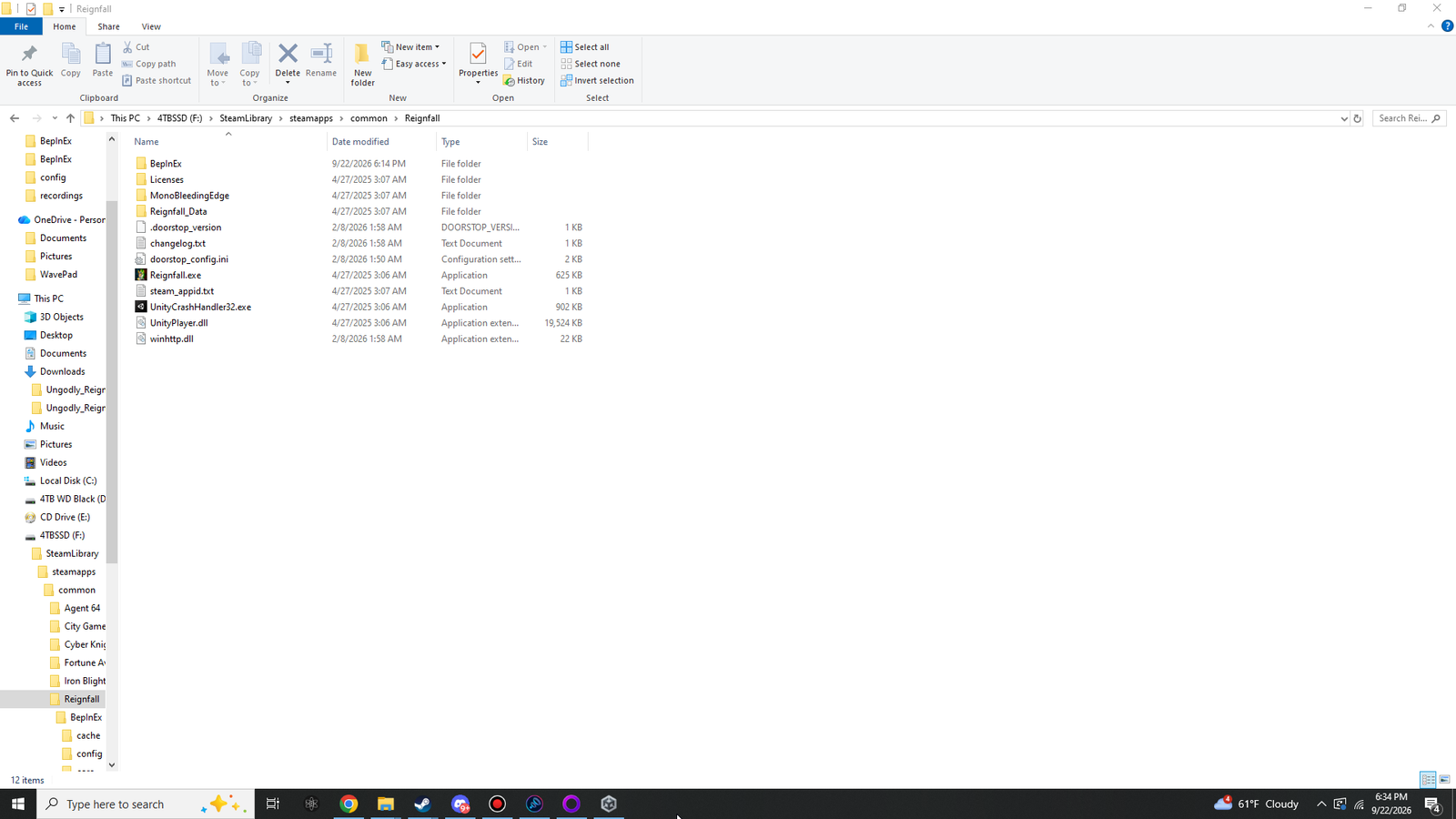 (opens the original 1920 × 1080 screenshot)
BepInEx folder, .doorstop_version, changelog.txt, doorstop_config.ini and winhttp.dll, which shows as 22 KB because it is the x86 build.Step 7: Launch Reignfall once, then quit
Start Reignfall from Steam as usual. Wait for the main menu, with v1.043 at the bottom left, then exit. The first launch can take a little longer while BepInEx builds its cache.
Nothing looks different yet. BepInEx has no window of its own unless you turn its console on (step 9), and no mods are installed yet.
Step 8: Confirm BepInEx created its folders
Open the BepInEx folder:
C:\Program Files (x86)\Steam\steamapps\common\Reignfall\BepInExIt now holds cache, config, core, patchers, plugins and LogOutput.log, and config contains BepInEx.cfg:
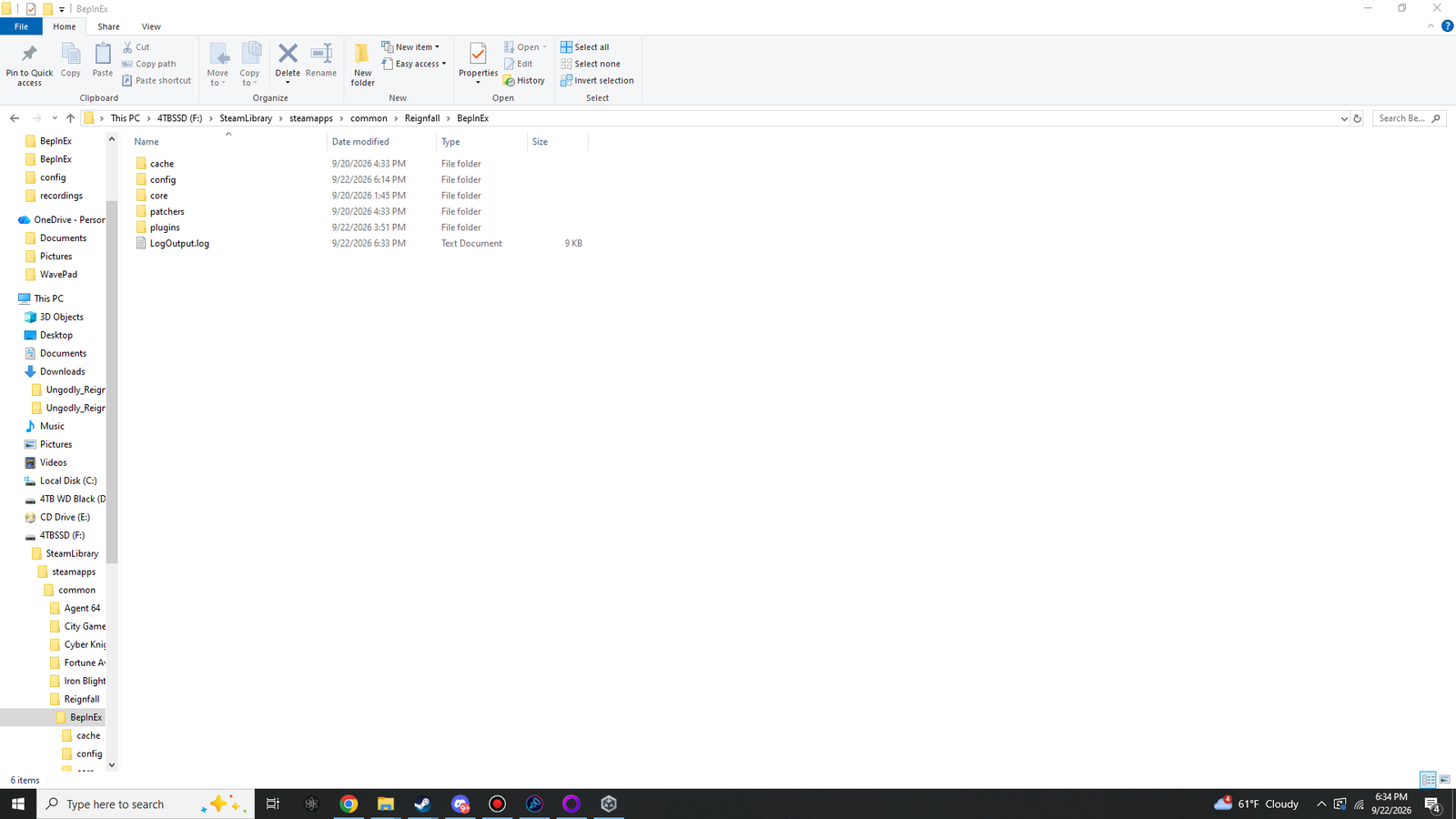 (opens the original 1920 × 1080 screenshot)
BepInEx after the first launch: cache, config, core, patchers, plugins and LogOutput.log.Open LogOutput.log in Notepad and search (Ctrl + F) for these two lines:
BepInEx 5.4.23.5 - Reignfall, near the top: BepInEx started inside Reignfall, and it is the right version.Chainloader startup complete, near the end: BepInEx finished starting up.
Only core in there and no LogOutput.log? BepInEx did not start. See BepInEx does not create its folders.
Step 9: Turn on the BepInEx console optional
A console window that shows the log live is handy while you set things up. It is off by default.
- Open
BepInEx\config\BepInEx.cfgin Notepad. - Find the
[Logging.Console]section. - In that section, change
Enabled = falsetoEnabled = true, then save.
[Logging.Console]
...
Enabled = true
The console opens with the game from the next launch. Set it back to false to hide it again.
How BepInEx starts inside Reignfall
- Reignfall.exeWindows finds
winhttp.dllin the game folder before its own copy. - winhttp.dllUnity Doorstop 4.5.0 reads
doorstop_config.ini. - BepInEx\core\BepInEx.Preloader.dllStarts BepInEx and opens the log.
- BepInEx\pluginsThe chainloader loads every plugin DLL here, subfolders included.
That chain is also why removing BepInEx is simple: without winhttp.dll next to Reignfall.exe, nothing else loads. BepInEx’s own installation guide covers the same ground for every game.